
Countdown Templates: Track the Year, Season or Month in One Tap
Add a countdown to the end of the year, the season or the month in one tap with Countdown X templates. The dates, colors and progress grid are set up for you, so you can watch time fill in day by day.

Some countdowns aren’t about a single big day. How much of the year is left, how many days until winter, how far you are into this month. These are the countdowns that keep you aware of time and help you plan your goals, but setting them up by hand means looking up when the season starts and picking the right start and end dates.
Countdown X templates do that for you. Tap + on the Events screen, choose Add from Template, and pick the current year, season or month. The event appears in your list right away, with its dates and colors set, and its progress grid fills in as the days go by.
What You Need Before Getting Started
Download the Countdown X app from the App Store. There’s nothing else to set up.
Templates are free for all users, on iPhone and iPad. An event added from a template is a regular event, so it counts toward the three events in the free plan. When you already have three events, Add from Template opens the Premium screen instead, and Premium gives you unlimited events. Showing an event’s progress as a percentage instead of time left is also part of Premium.
How To Add an Event From a Template
Follow these steps to add a countdown from a template:
- Open Countdown X and go to the Events screen.
- Tap + in the top-right corner.
- Tap Add from Template.
- Tap the template you want: the year, the season or the month.
The + button now opens a small menu. Create Manually opens the usual new event screen, and Add from Template shows the ready-made countdowns.
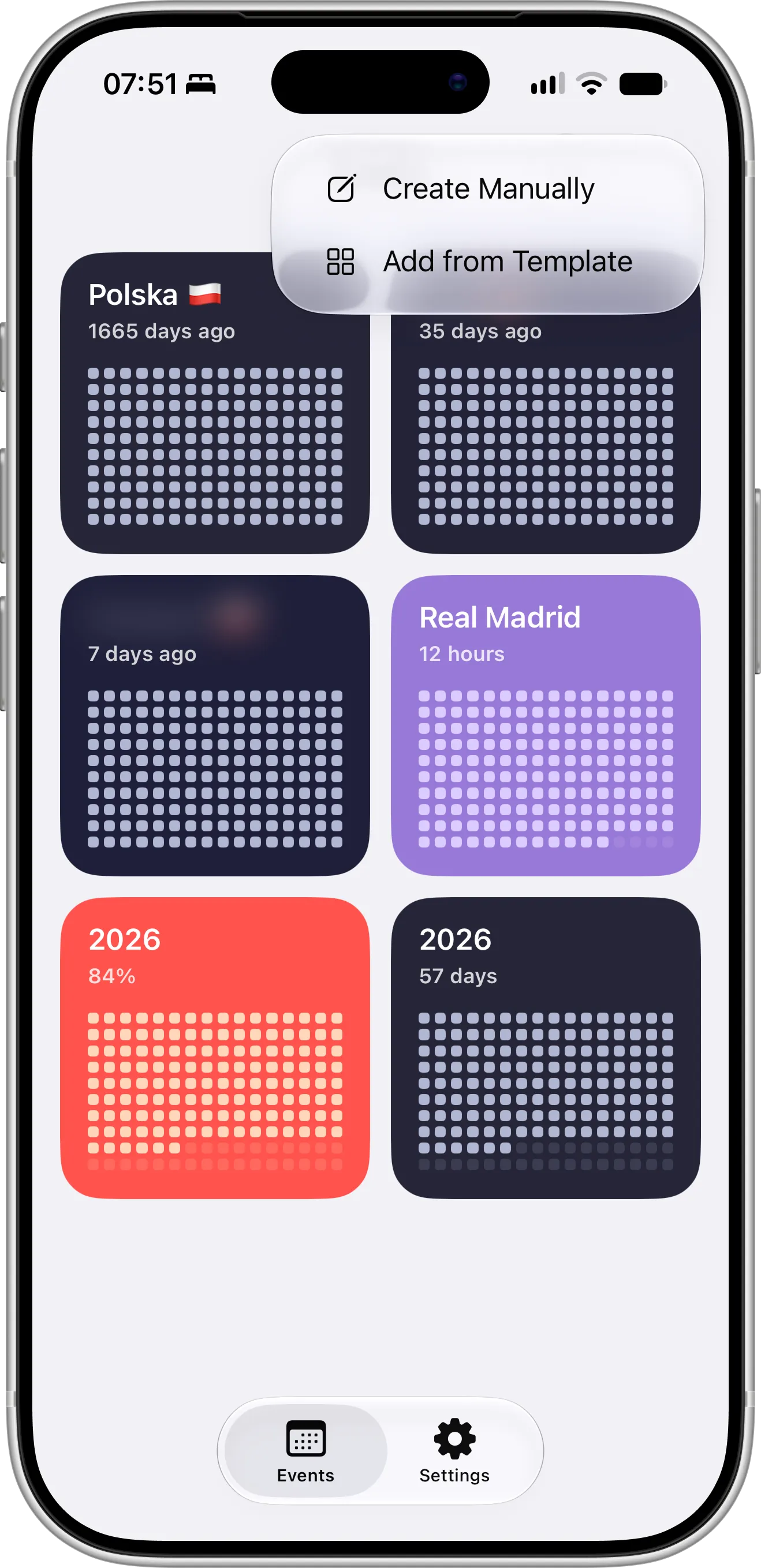
The + button on the Events screen now offers two ways to add an event: Create Manually and Add from Template.
Choose a Template shows each template exactly as it will look in your list, with today’s numbers. Tap one and it’s added, with no extra screens to fill in.
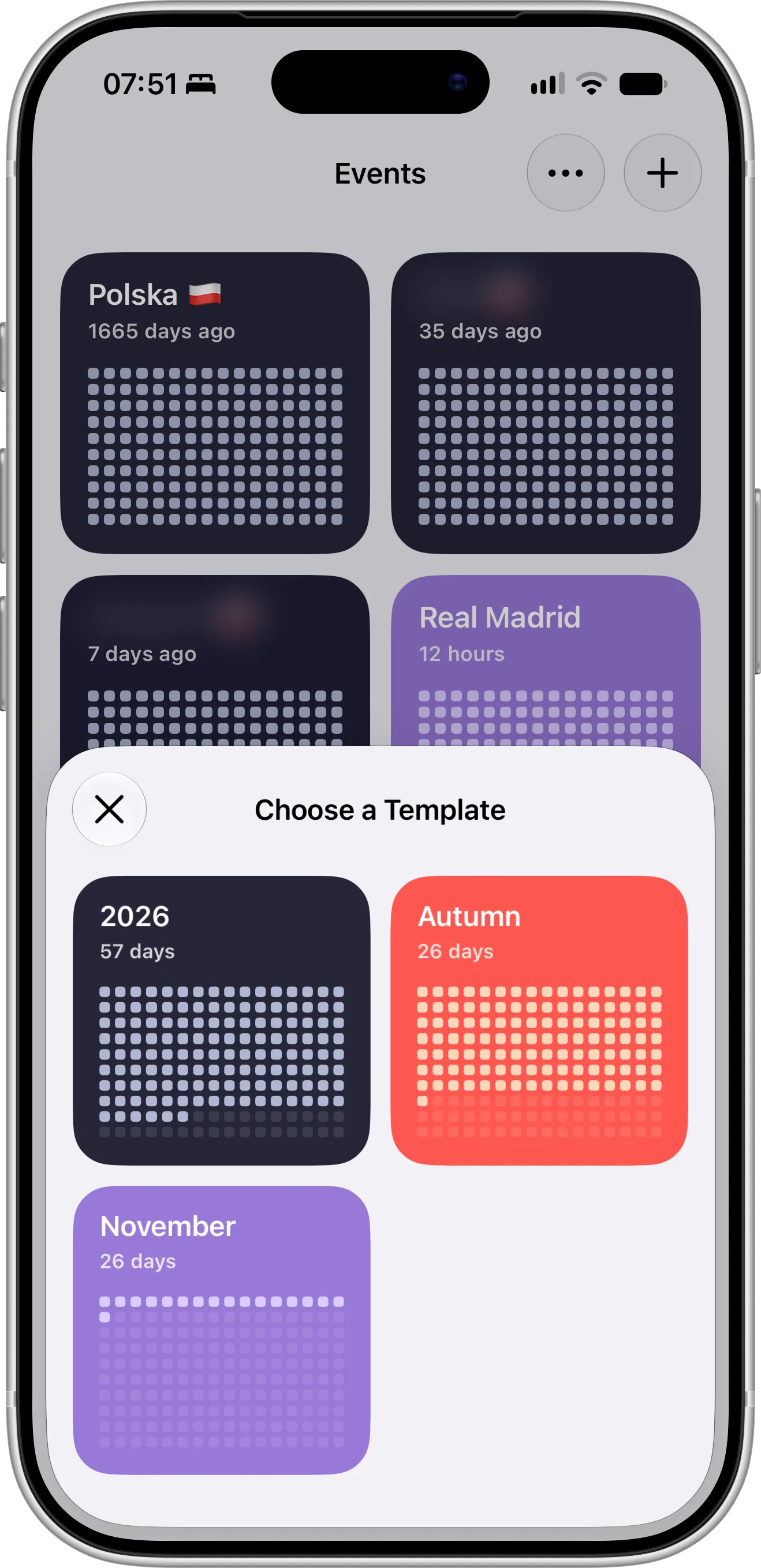
Each template is a live preview: you see the days left and the progress grid before you add it.
The sheet closes and the new event joins your other countdowns on the Events screen.
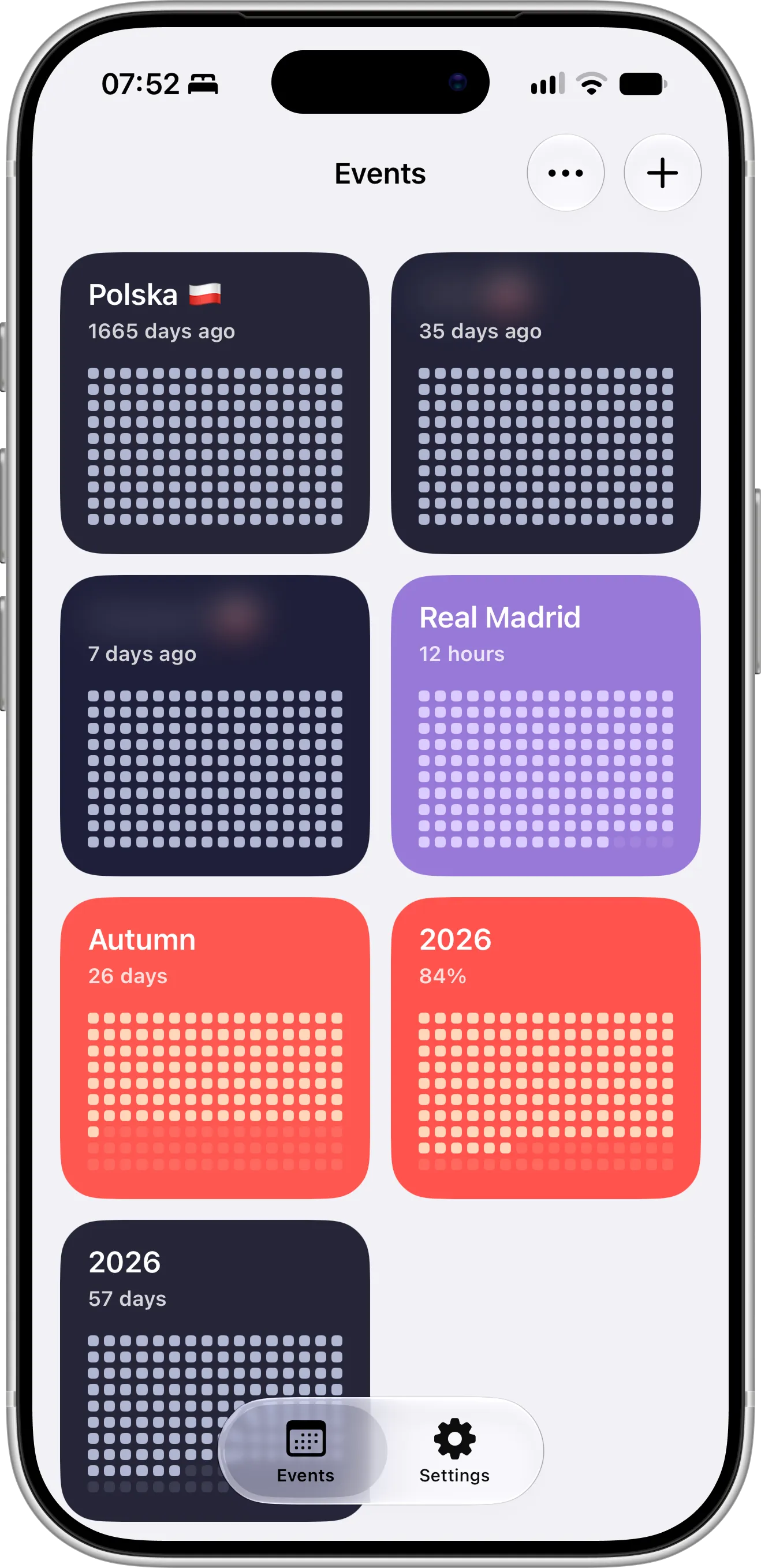
The Autumn template is now a regular event in the list, with its own colors and progress grid.
What’s in Each Template
Each template counts down to the end of the current period and measures progress from its start. These are the three templates:
- Year: named after the current year, such as 2026, in a dark Midnight style. It runs from January 1 to the end of December 31.
- Season: named after the current season, such as Autumn, in a red Coral style. Seasons follow whole months: spring is March to May, summer is June to August, autumn is September to November, and winter is December to February.
- Month: named after the current month, such as November, in a purple Lavender style. It runs from the first day of the month to the last.
On November 4, 2026, that means 57 days left in the year and 26 days left in both autumn and November.
All three are all-day events, so they end at midnight when the next year, season or month begins. The start date is set to the first day of the period, which is why the progress grid already shows how much of it has passed the moment you add it.
Seasons depend on where you are. If your iPhone’s region is in the Southern Hemisphere, such as Australia, Brazil or South Africa, the seasons are swapped, so November is spring and December starts summer. Template names also follow your iPhone’s language.
Tips for Using Templates
Put a template on your Home Screen. A year or month countdown is one of the best uses for a widget, because you see the grid fill in every time you unlock your phone. The Home Screen widgets and Lock Screen widgets guides show how to add one.
Make the event yours after you add it. Open it, tap the menu button and choose Edit to rename it, change its colors, turn on a reminder or exclude weekend days. To show the year as a percentage, like 84% of 2026, switch the display to percentage in the same screen. The year progress guide has more ideas for tracking your year.
A template event doesn’t roll over on its own. When the month or season ends, the event starts counting the days since it ended. Delete it and add the template again to start the next period, or keep it as a record of the time that passed.
Templates work well together. Add the year, the season and the month side by side to see how each one is moving, and use Copy Style if you want them all in the same colors.
Need Help or Have Feedback?
If you encounter any issues, have questions about templates, or want to suggest a new template, you can always reach out through the contact page. Your feedback helps make the countdown app better for everyone.

