How to Duplicate a Countdown and Copy Its Style: Set Up Events Faster
Duplicate any event in one tap to reuse its date, colors and settings, and copy an event's colors to paste them onto other countdowns. Keep your events consistent without editing each one.

Many countdowns look alike. A birthday for each friend, one countdown per exam, a deadline for every project. Setting up each one from scratch means picking the same date options and the same three colors again and again.
Countdown X has two shortcuts for this. Duplicate makes a full copy of an event, so you only change what’s different. Copy Style and Paste Style move an event’s colors onto any other event, so your countdowns can share a look without editing each one.
What You Need Before Getting Started
Download the Countdown X app from the App Store and create at least one event to copy from.
Duplicating events and copying styles are free for all users, on iPhone and iPad. A duplicate is a new event, so it counts toward the three events in the free plan. When you already have three events, Duplicate opens the Premium screen instead, and Premium gives you unlimited events.
How To Duplicate an Event
Follow these steps to make a copy of an event:
- Open the event, or find it on the Events screen.
- Tap the menu button in the top-right corner of the event screen, or touch and hold the event card on the Events screen.
- Tap Duplicate.
- Tap the menu button again and choose Edit to rename the copy or change its date.
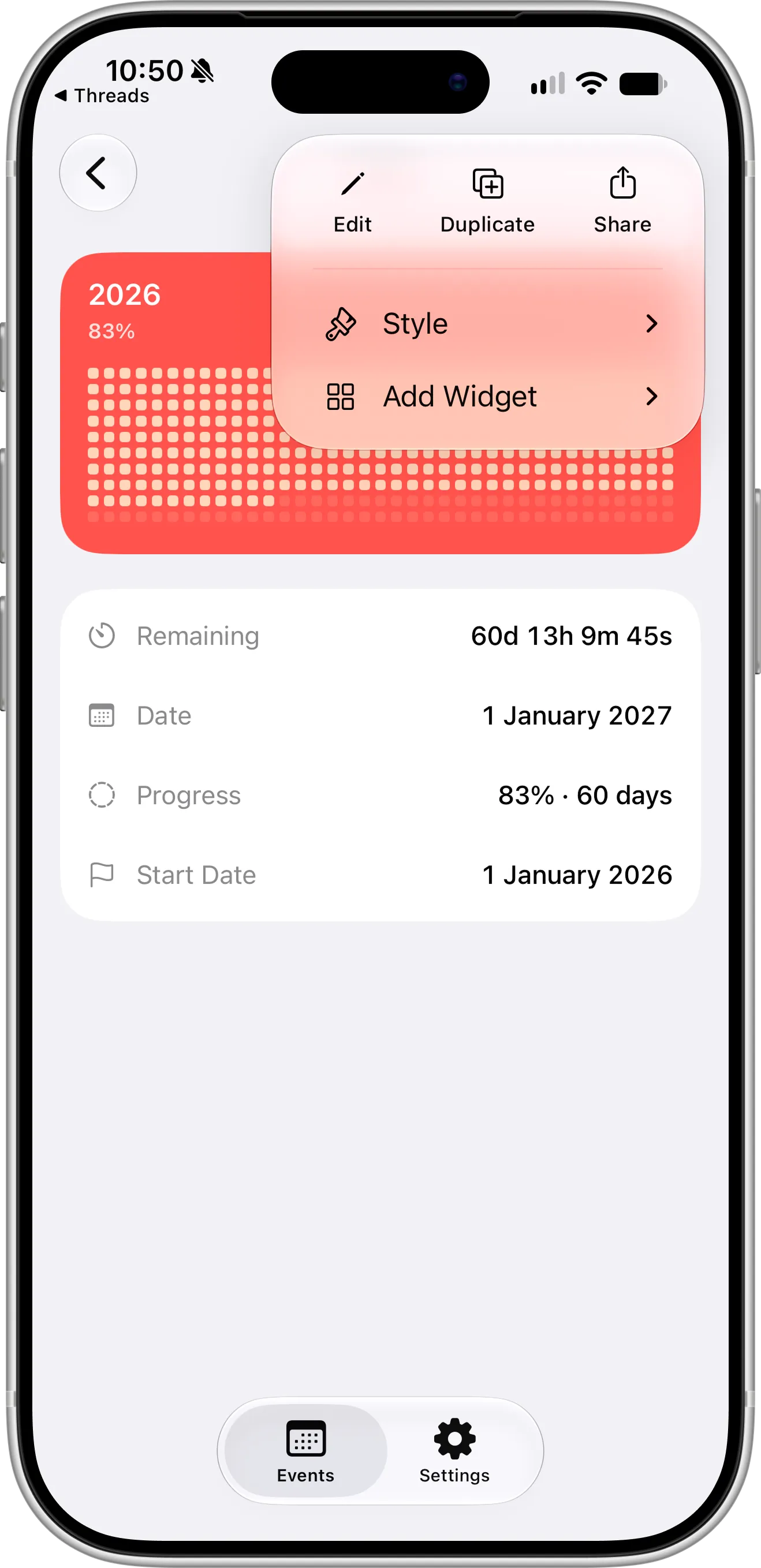
Duplicate sits between Edit and Share at the top of the menu, both on the event screen and on the Events screen.
When you duplicate from the event screen, Countdown X opens the copy right away, so you can edit it. When you duplicate from the Events screen, the copy appears in your list.
How To Copy and Paste a Style
A style is an event’s three colors: Background Color, Text Color and Accent Color. Here’s how to move them from one event to another:
- Touch and hold the event whose colors you like, or open it and tap the menu button.
- Tap Style, then Copy Style.
- Touch and hold the event you want to change, or open it and tap the menu button.
- Tap Style, then Paste Style.
Before you copy anything, the Style menu only shows Copy Style. Paste Style isn’t there yet because there’s nothing to paste.
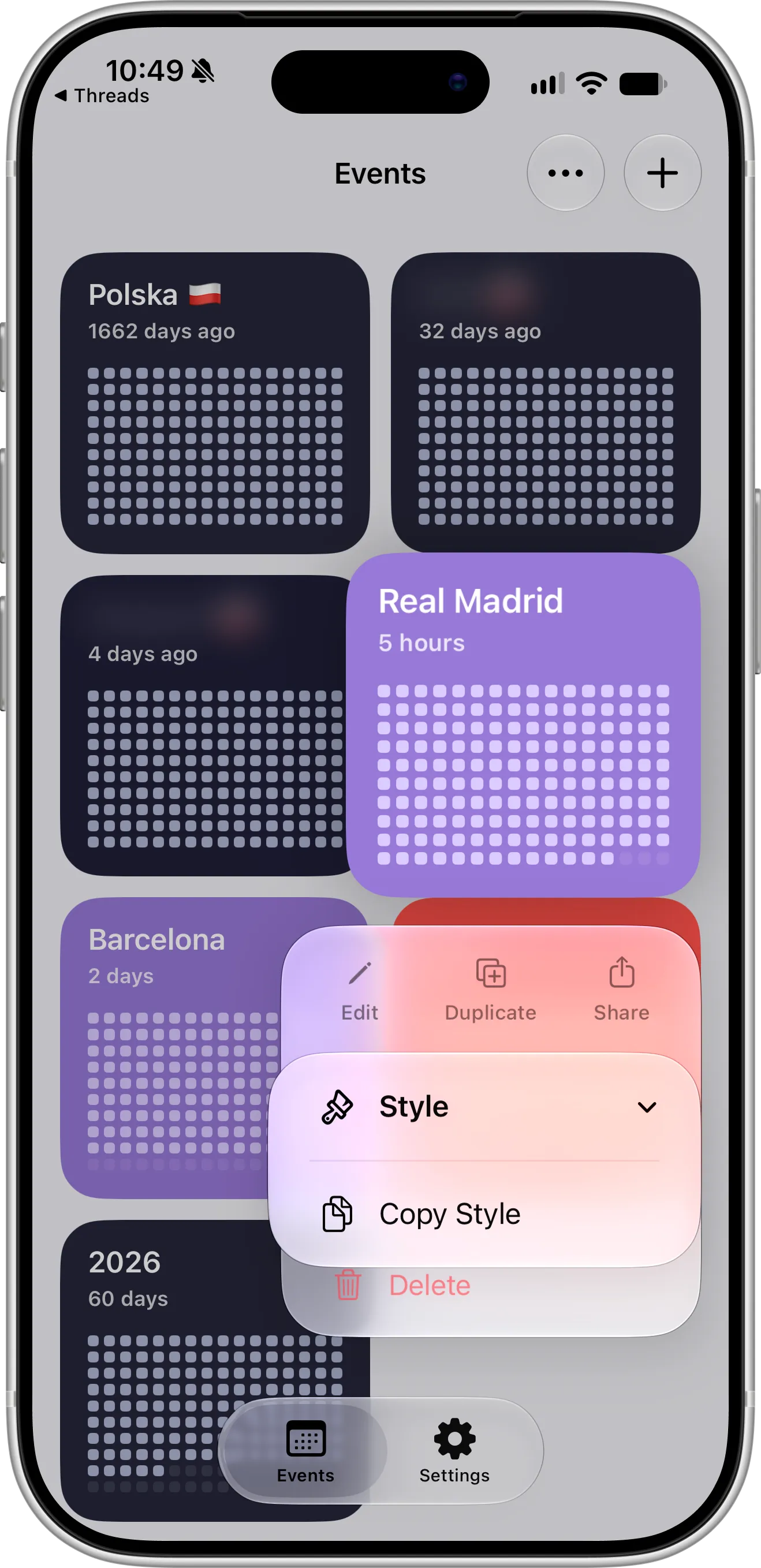
The first time you open Style, it offers only Copy Style.
Once you’ve copied a style, Paste Style appears in the Style menu of every event. Pick it on another event and that event takes the copied colors right away.
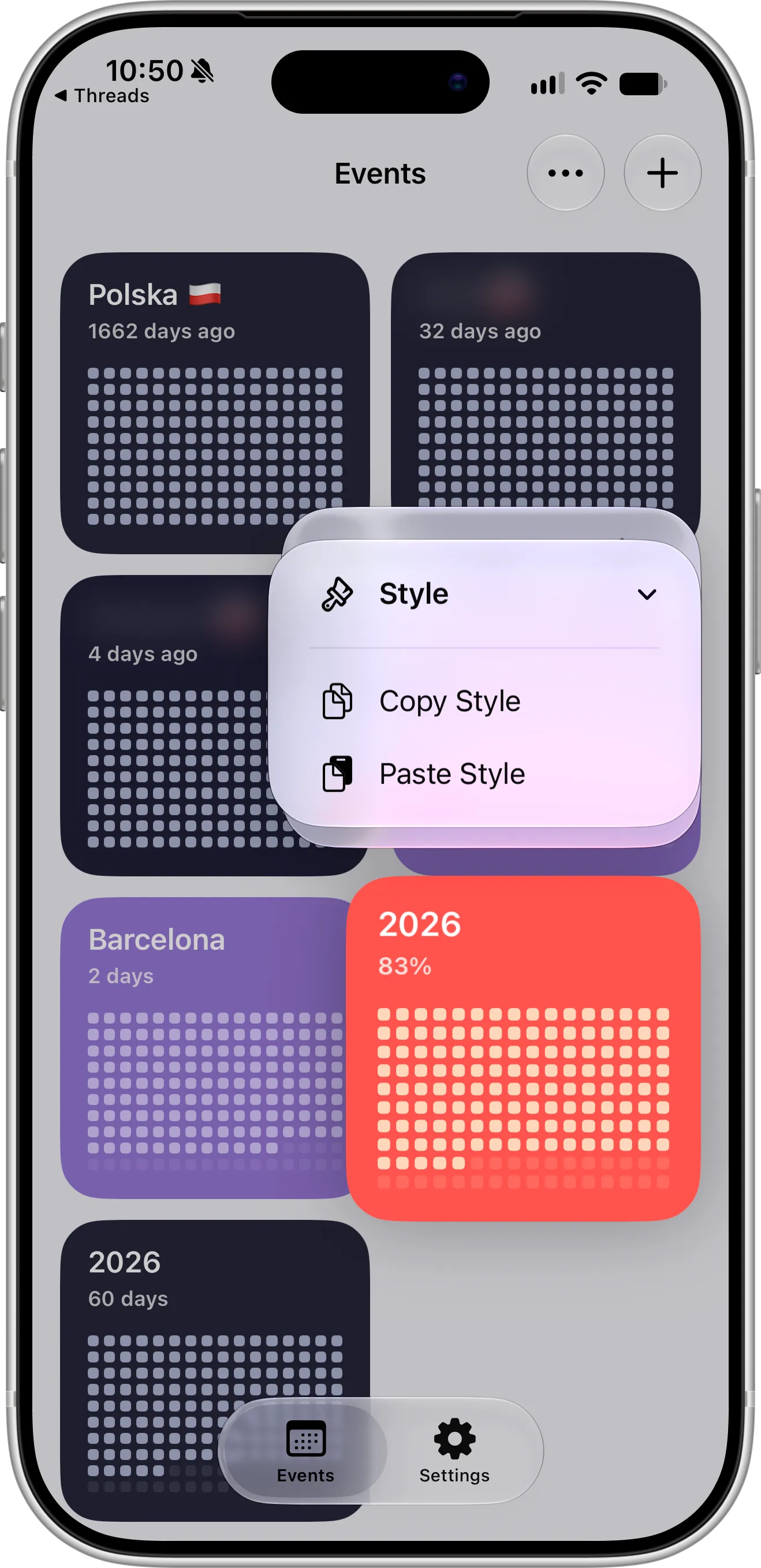
After you copy a style, Paste Style shows up on every event, ready to apply the same colors.
The same Style menu is on the event screen too. Tap the menu button in the top-right corner, then Style, to copy or paste without going back to your list.
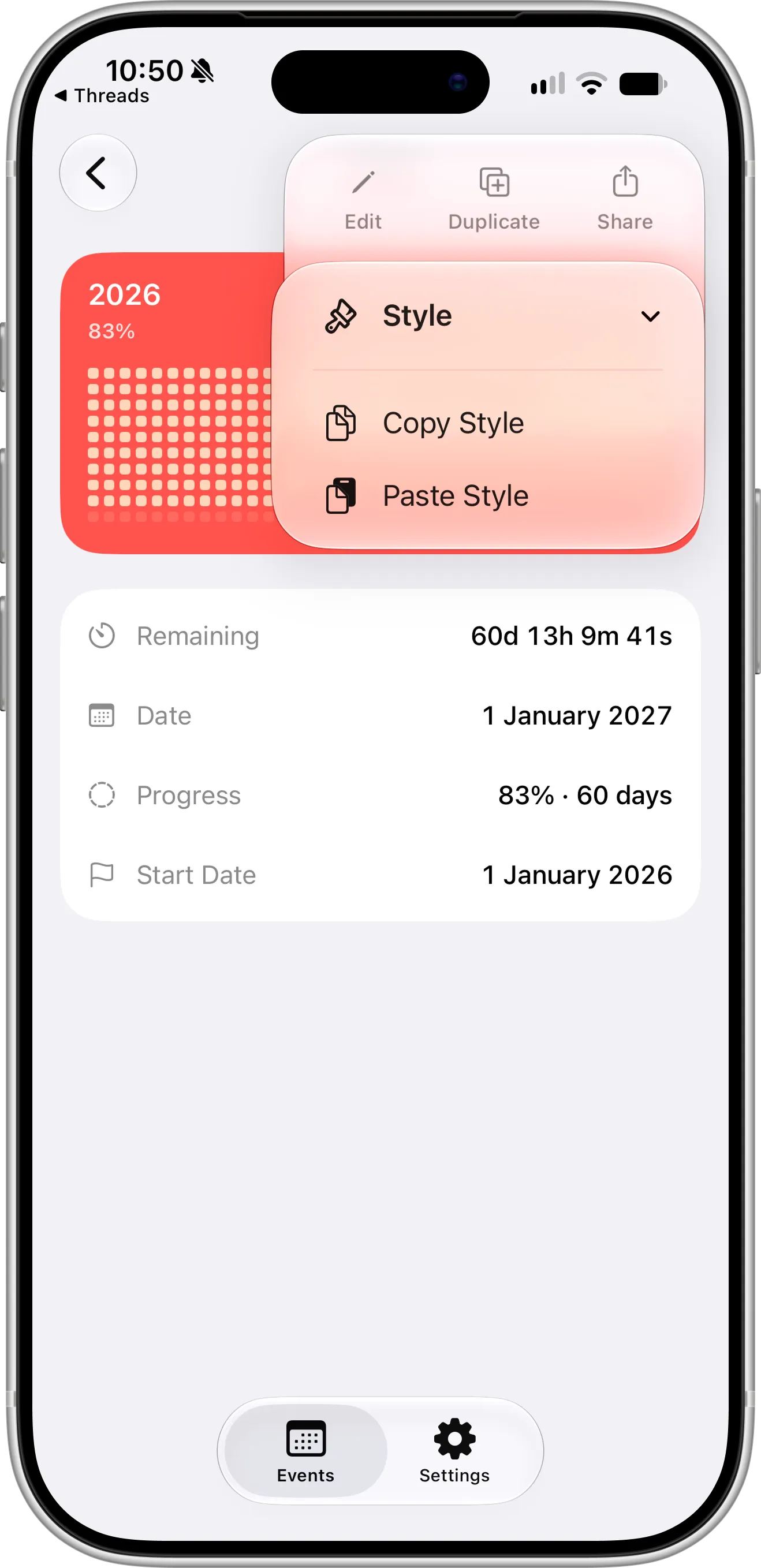
On the event screen, Style sits under Edit, Duplicate and Share in the menu button.
What Paste Style Changes
Paste Style only changes the colors. The name, date, repeat, reminder, notes and everything else stay as they were.
The new colors show up everywhere the event appears: on the Events screen, in your Home Screen widgets and Lock Screen widgets, and in Live Countdown if it’s running.
The copied style stays available while the app is open, so you can paste it onto as many events as you like. Copying another event’s style replaces it. When you close Countdown X completely, the copied style is cleared.
Tips for Duplicating and Styling Events
Use Duplicate for events that share most of their settings. If you track exams, set up the first one with its reminder, colors and excluded weekend days, then duplicate it for every other exam and change only the name and date.
Use Copy Style when the events are different but should look related. Give every birthday the same color, every work deadline another, and your list becomes easy to scan at a glance. Paste the style onto each event one after another while the app is open.
To start a new color theme, open one event, tap the menu button and choose Edit to set its Background Color, Text Color and Accent Color. Then copy that style and paste it onto the rest. If you change your mind, Reset Colors in the edit screen brings back the default colors.
Matching colors also look great when you share a countdown as an image for Stories or your feed.
Need Help or Have Feedback?
If you encounter any issues, have questions about duplicating events or copying styles, or want to suggest improvements, you can always reach out through the contact page. Your feedback helps make the countdown app better for everyone.