How to Set Up Lock Screen Widgets: Quick Countdown Tracking Tips
Learn how to configure Lock Screen widgets to see your upcoming events at a glance. Track past and future countdowns, stay organized, and never miss important moments.

Lock Screen widgets bring your countdowns closer to your everyday routine by placing your upcoming events and timers directly on your iPhone Lock Screen. Instead of opening the app multiple times a day, you can instantly see what’s coming up and track your progress throughout the day.
By keeping your events visible at all times, Lock Screen widgets reduce friction and make countdown tracking feel more natural and effortless. A single glance is often enough to stay on top of past and future moments, monitor your progress, and keep important dates front of mind without distractions.
What You Need Before Getting Started
To use Lock Screen widgets in the countdown app, you first need to download and install the app from the App Store. Lock Screen widgets are available to all users and are designed to help you stay on top of your events throughout the day. Once the app is installed, you can add and customize widgets in just a few simple steps.
Tip: you can open this guide right from your iPhone. Press and hold the Countdown X app icon and choose Add Lock Screen Widget.
How To Add a Lock Screen Widget
Follow these steps to add a countdown widget to your Lock Screen:
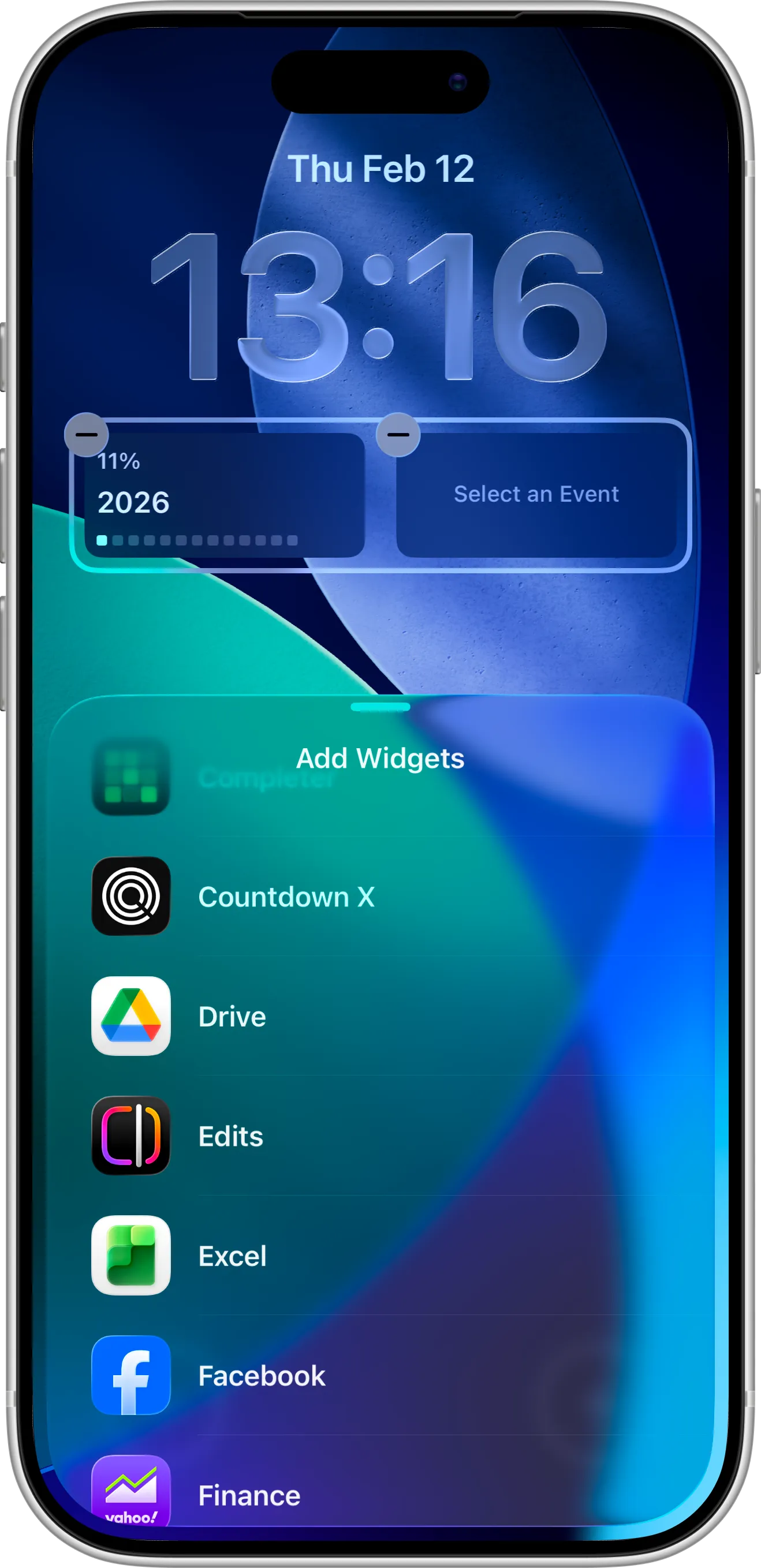
- Touch and hold the Lock Screen until the Customize button appears, then tap Customize.
- Tap the widget area below the time.
- Find the Countdown X in the widget list.
- Choose a widget size and tap it to add it to your Lock Screen.
- Tap Done to save your changes.
How To Configure the Widget
When you add your Lock Screen widget, it won’t track a event automatically. You’ll need to configure it:
- Tap the widget while still in edit mode.
- Select the event you want to track from your list.
- Confirm your selection.
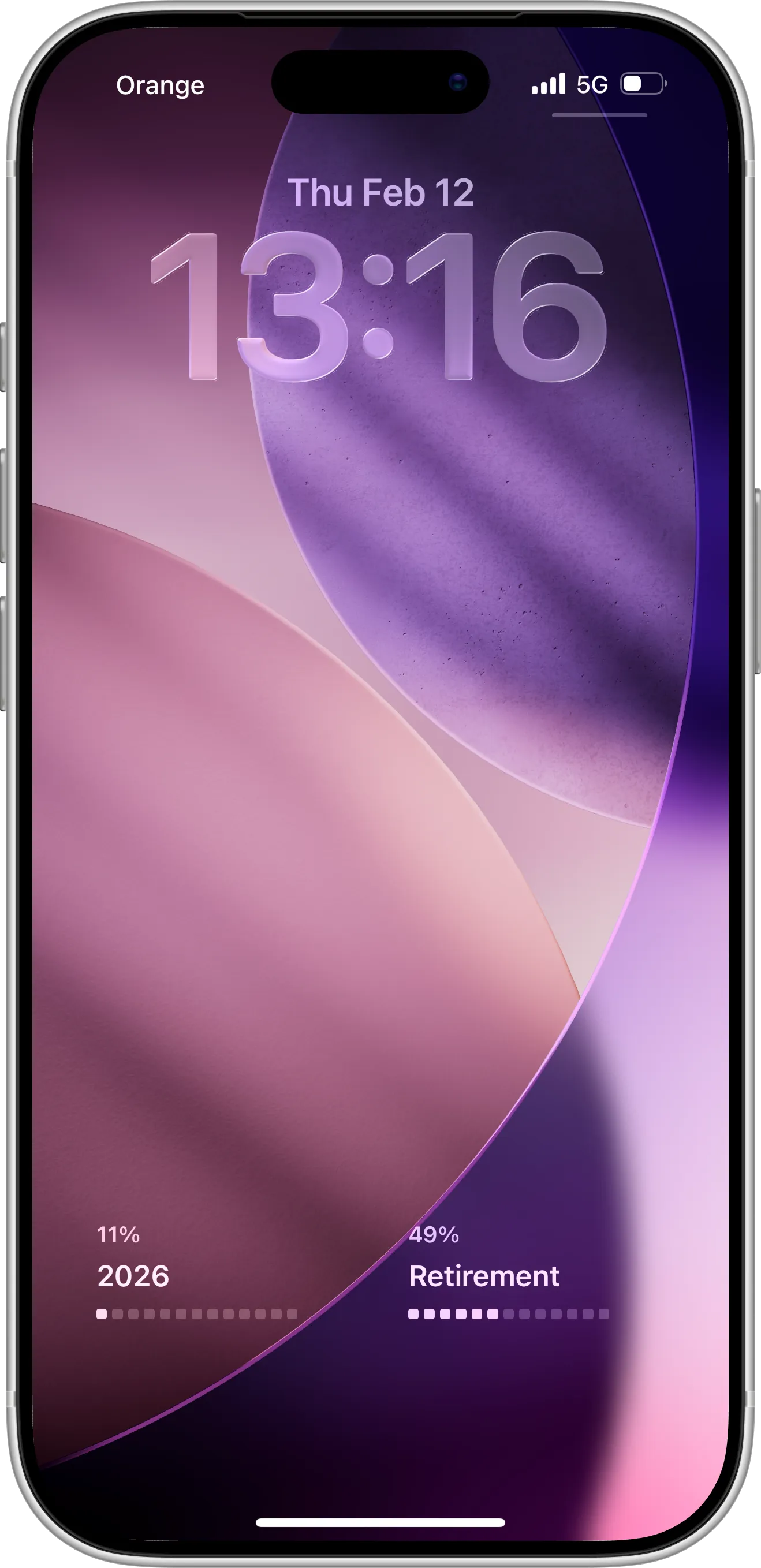
Once configured, the widget will display progress for that specific event and update as time passes, keeping you on top of your countdown.
Tips for Using Lock Screen Widgets Effectively
For the best experience, choose an event that’s most important to you and benefits from frequent visual reminders. Placing the widget where it’s easy to see helps keep your countdowns visible throughout the day and encourages regular tracking.
Lock Screen widgets work especially well when combined with reminders and frequent app usage. Using both together reduces friction, keeps events top of mind, and makes staying on schedule feel effortless over time.
Need Help or Have Feedback?
If you encounter any issues, have questions about widgets, or want to suggest improvements, you can always reach out through the contact page. Your feedback helps make the countdown app better for everyone.