How to Set Up Home Screen Widgets: Maximize Your Countdown Experience
Learn how to configure Home Screen widgets to view all your countdowns at a glance. Monitor event progress throughout the day, stay on top of dates, and stay organized.

Home Screen widgets bring your countdowns into your daily routine by keeping your upcoming events visible directly on your iPhone Home Screen. Instead of relying on memory or opening the app repeatedly, your events stay present as part of your normal phone usage.
By placing event information alongside your apps, Home Screen widgets help reinforce consistency throughout the day. Seeing your countdowns regularly acts as a gentle reminder, making event tracking feel more natural, integrated, and easy to maintain over time.
What You Need Before Getting Started
To use Home Screen widgets in the countdown app, you first need to download and install the app from the App Store. Home Screen widgets are available to all users and are designed to help you stay on top of your events every day. Once the app is installed, you can add and customize Home Screen widgets in just a few simple steps.
Tip: you can open this guide right from your iPhone. Press and hold the Countdown X app icon and choose Add Home Screen Widget.
How To Add a Home Screen Widget
Follow these steps to add a countdown widget to your Home Screen:
- Touch and hold anywhere on your Home Screen until the apps start to jiggle.
- Tap the + button in the top-left corner.
- Search for the Countdown X in the widget list.
- Choose a widget size and tap Add Widget.
- Position the widget where you want it on your Home Screen.
- Tap Done to save your layout.
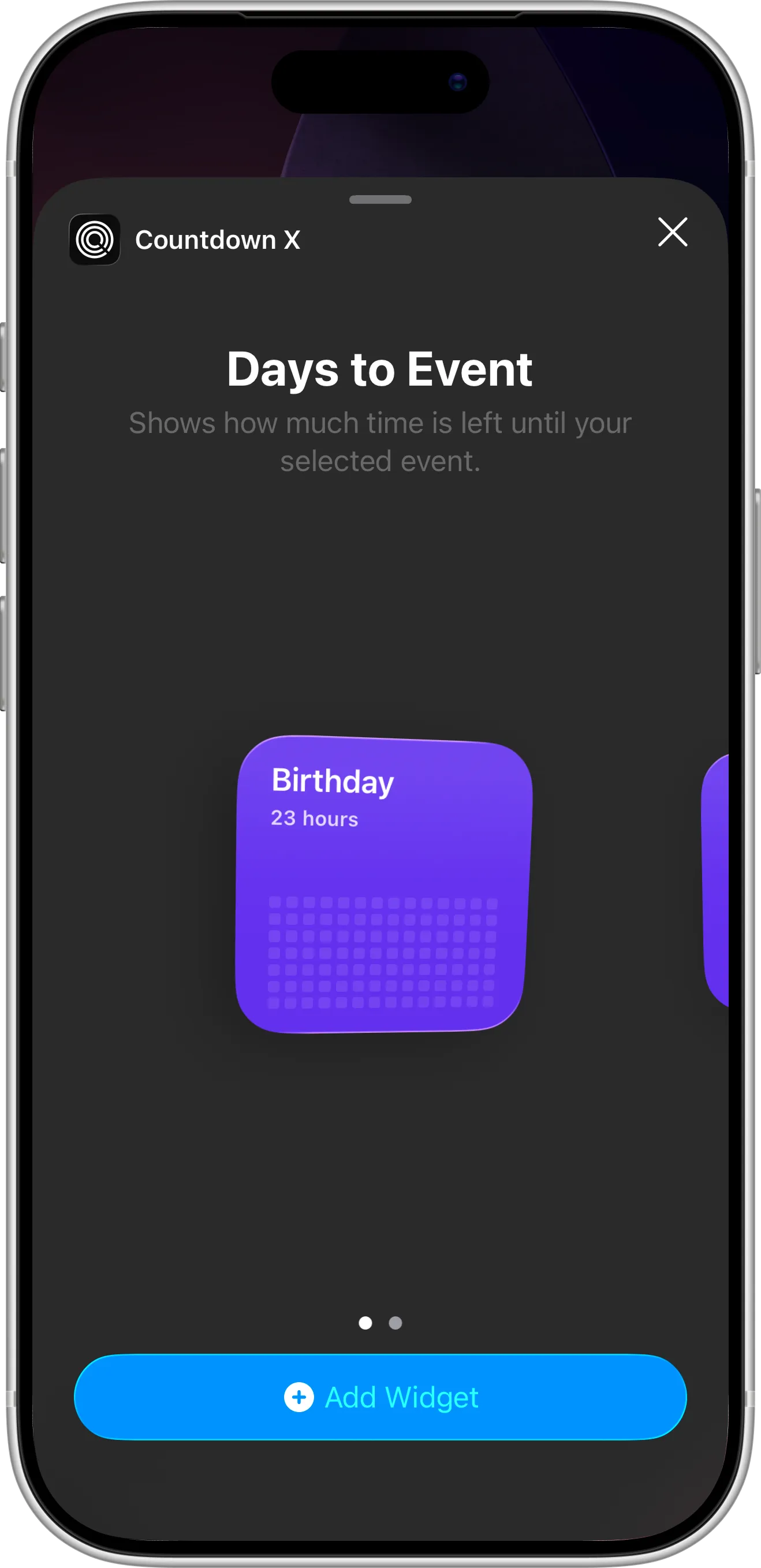
How To Configure the Widget
When you add a Home Screen widget, it won’t track a event automatically. You’ll need to configure it:
- Touch and hold the widget on your Home Screen.
- Tap Edit Widget.
- Select the event you want to track.
- Confirm your selection.
Once configured, the widget will display up-to-date progress for the selected event and update as time passes, keeping you on top of your countdowns.
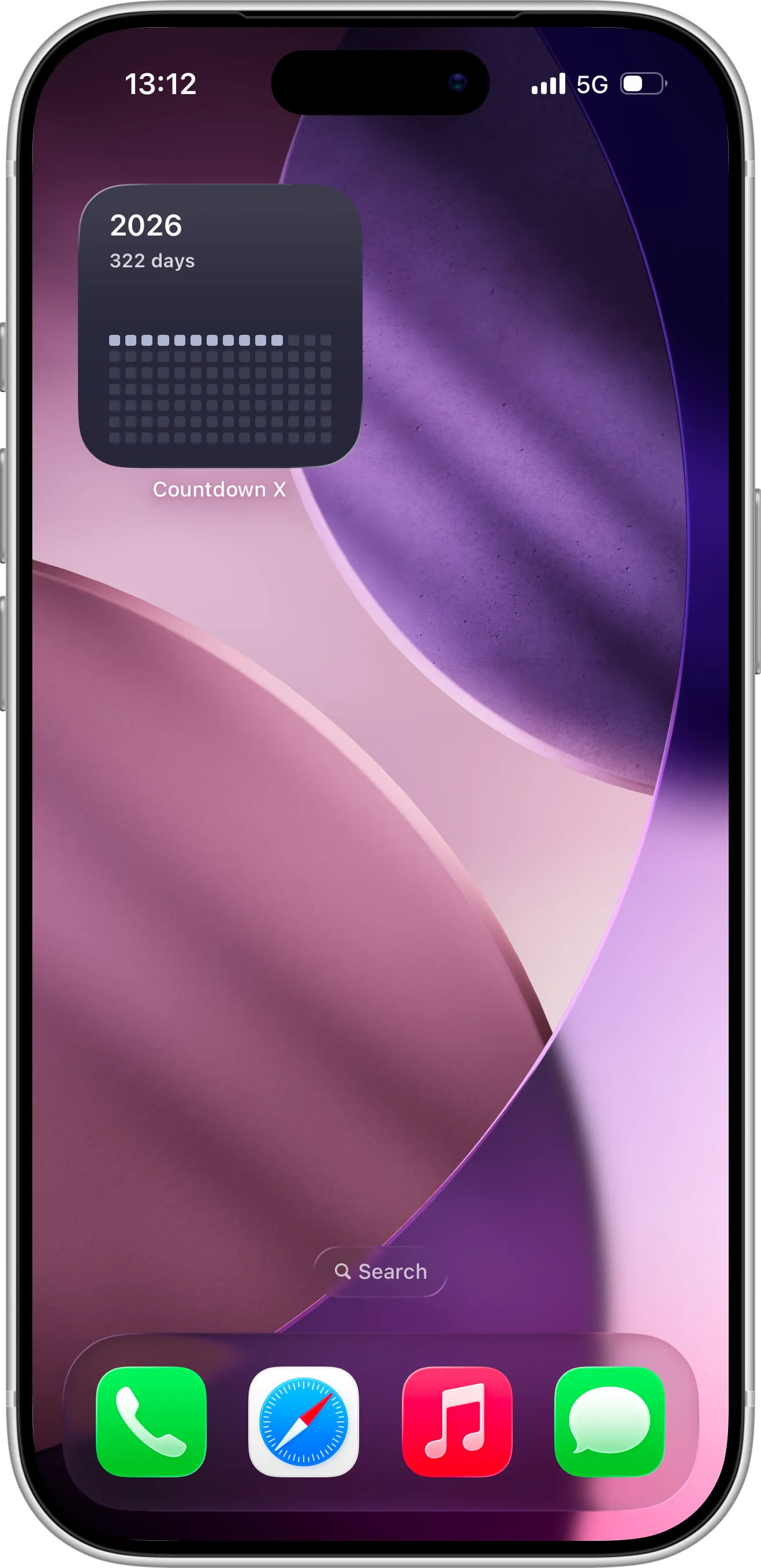
Tips for Using Home Screen Widgets Effectively
For best results, place your Home Screen widget on a screen you visit frequently, such as your main Home Screen. Choosing an event that benefits from regular visual reminders can help reinforce consistency and make tracking countdowns feel effortless throughout the day.
Home Screen widgets work especially well when paired with reminders and regular check-ins inside the app. Keeping events visible alongside daily apps helps reduce friction, maintain focus, and stay on top of your schedule over time.
Need Help or Have Feedback?
If you encounter any issues, have questions about widgets, or want to suggest improvements, you can always reach out through the contact page. Your feedback helps make the countdown app better for everyone.