Add a Countdown in One Tap: Control Center, Lock Screen and Action Button
Start a new countdown in one tap from Control Center, the Lock Screen, the Action button or the Countdown X app icon. Learn how to add the Add Event control and use quick actions on your iPhone.

When a new date comes up, the fastest way to remember it is to add it right away. Every extra step between you and the New Event screen makes it easier to put it off and forget.
Countdown X gives you several one-tap ways to start a new event: a control for Control Center and the Lock Screen, the Action button, and a quick action on the app icon. Each one takes you straight to the New Event screen, or creates the event without opening the app at all.
What You Need Before Getting Started
To use these shortcuts, download the Countdown X app from the App Store. The Add Event control, the Action button setup and the quick actions are free for all users. New events count toward the free limit of three events, and Premium removes that limit.
The Add Event control and the quick actions work on iPhone and iPad. The Action button is available on iPhone models that have one, such as iPhone 15 Pro and later. The Lock Screen controls are on iPhone.
How To Add the Control to Control Center
Follow these steps to add the Add Event control to Control Center:
- Swipe down from the top-right corner of your screen to open Control Center.
- Tap + in the top-left corner.
- Tap Add a Control.
- Search for “countdown”.
- Tap Add Event under Countdown X.
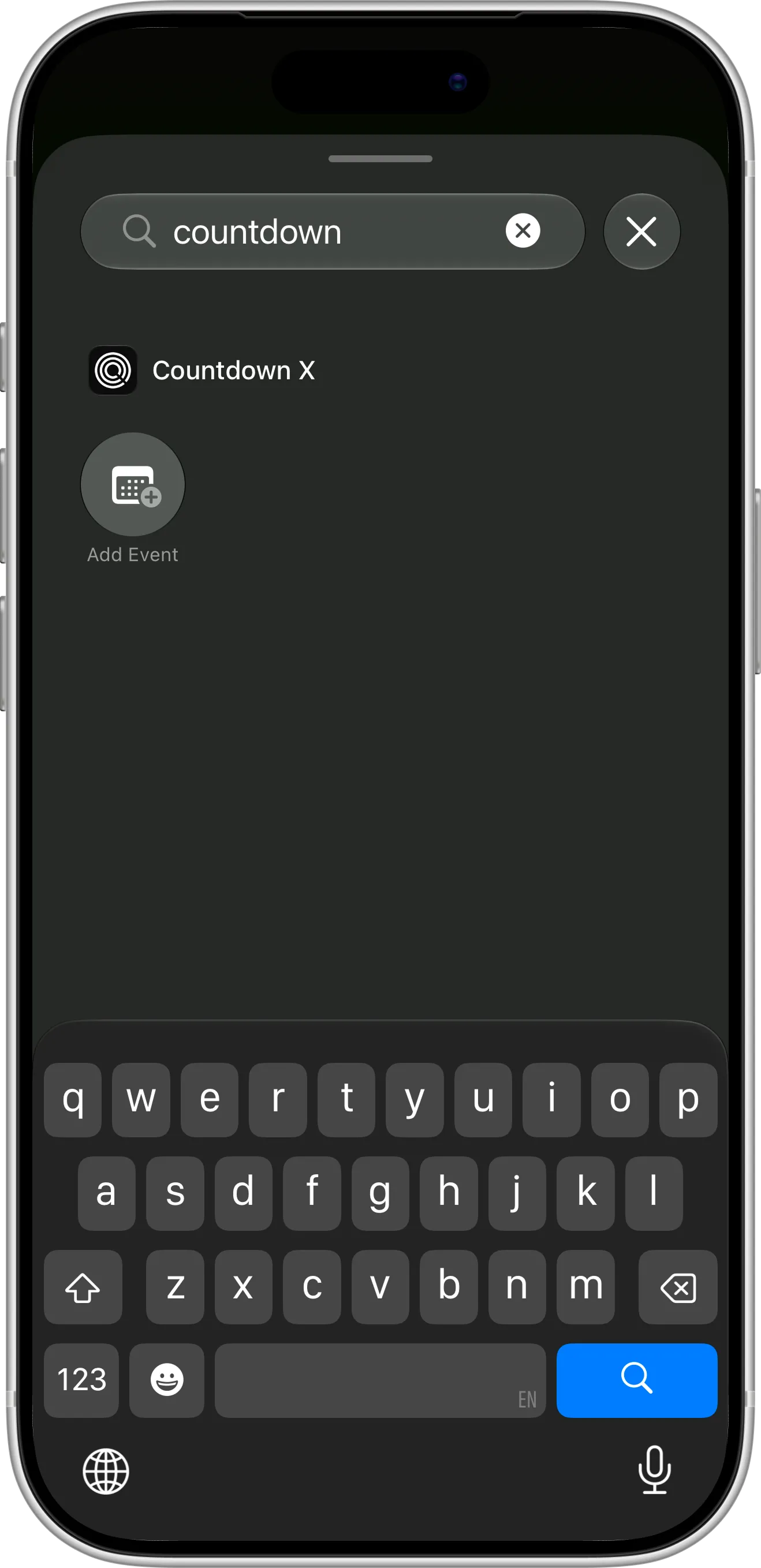
Search for “countdown” in the controls gallery to find the Add Event control.
Now tap the control in Control Center, and Countdown X opens straight to the New Event screen.
How To Add the Control to Your Lock Screen
You can also replace one of the two buttons at the bottom of your Lock Screen with the Add Event control. Here’s how:
- Touch and hold your Lock Screen, then tap Customize.
- Choose Lock Screen.
- Tap the minus button on the flashlight or camera button to remove it.
- Tap + in the empty spot, search for “countdown”, and choose Add Event.
- Tap Done.
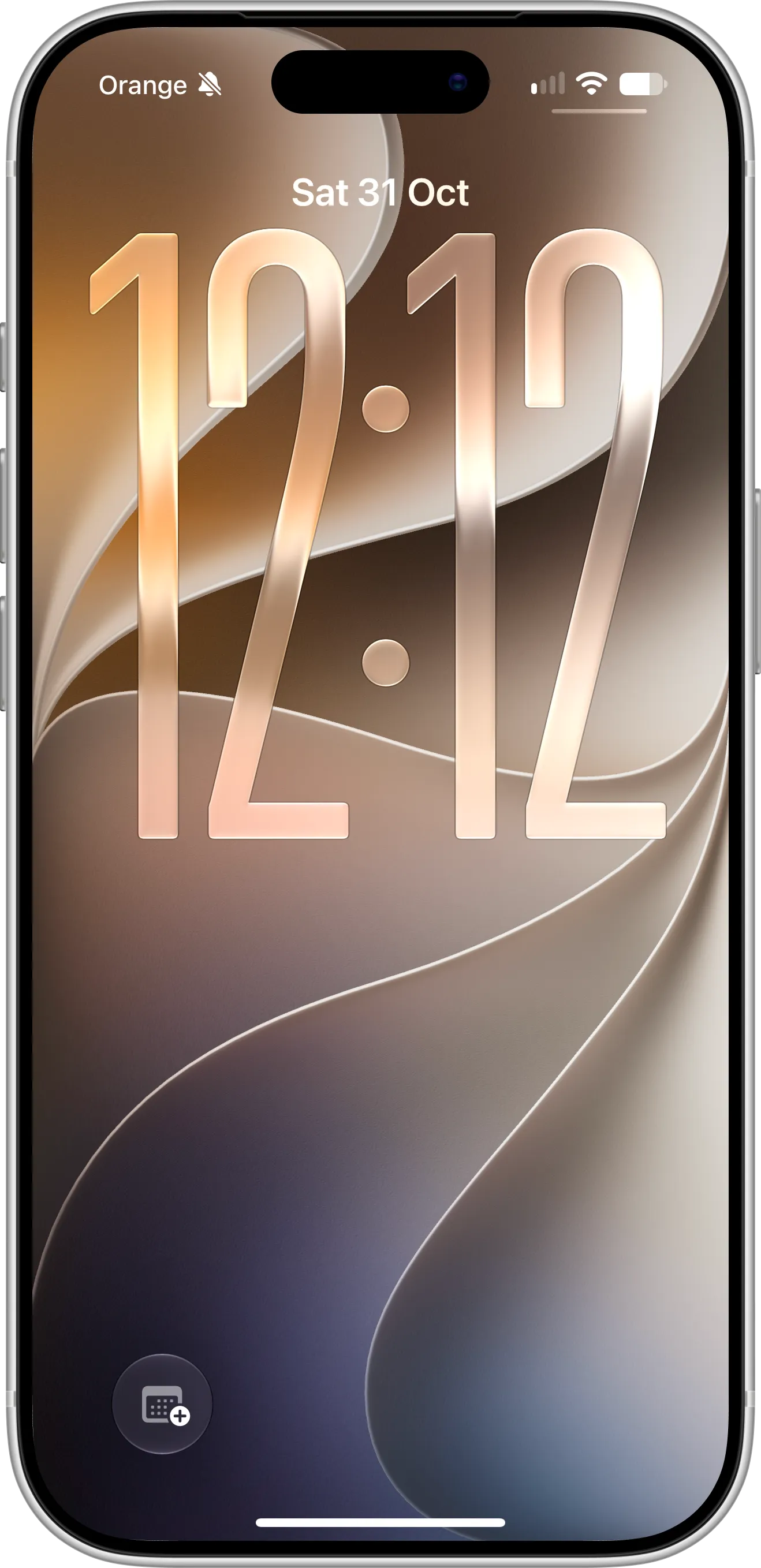
The Add Event control at the bottom of the Lock Screen: tap it to start a new event as soon as you pick up your iPhone.
How To Set Up the Action Button
If your iPhone has an Action button, you can make it start a new event. There are two options:
- Controls: opens Countdown X to the New Event screen, like the Add Event control.
- Shortcut: runs “Create an event in Countdown X”, which asks for the name and date and creates the event without opening the app.
To set it up, follow these steps:
- Go to Settings → Action Button.
- Swipe to Controls and choose Add Event, or swipe to Shortcut and choose “Create an event in Countdown X”.
- Press and hold the Action button to try it.
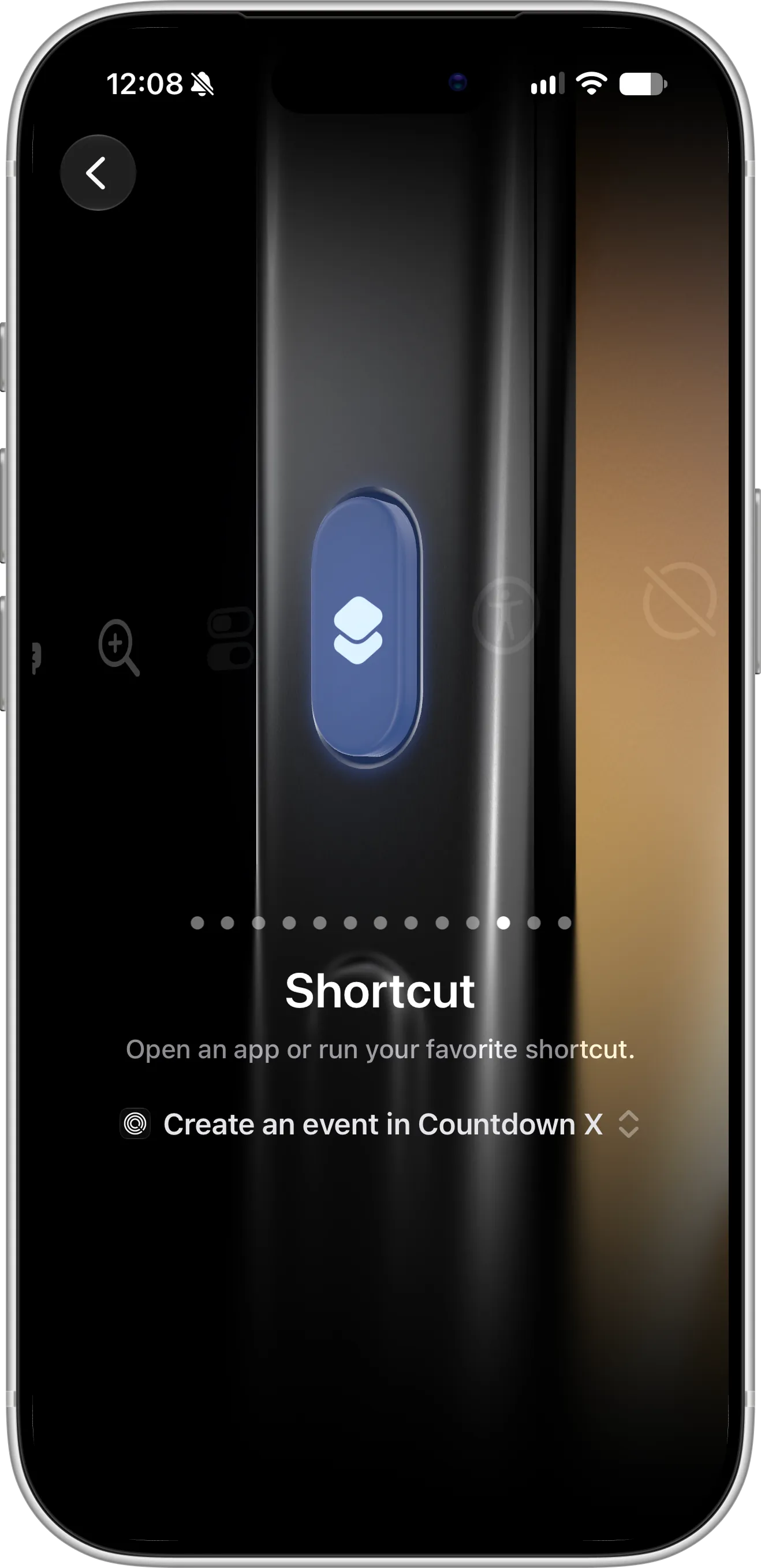
The Action button set to the Countdown X shortcut: one press asks for a name and date and creates the event.
The shortcut is the same one you can use from the Shortcuts app and with Siri. Learn more in our guides on Countdown X shortcuts and creating a countdown with Siri.
How To Use Quick Actions on the App Icon
The Countdown X app icon has its own menu of quick actions. To use it, touch and hold the Countdown X icon on your Home Screen. You’ll see these actions:
- Add Event: opens Countdown X straight to the New Event screen.
- Something wrong?: opens a form where you can report a problem or share feedback.
- Add Lock Screen Widget: opens our guide to adding Lock Screen widgets.
- Add Home Screen Widget: opens our guide to adding Home Screen widgets.
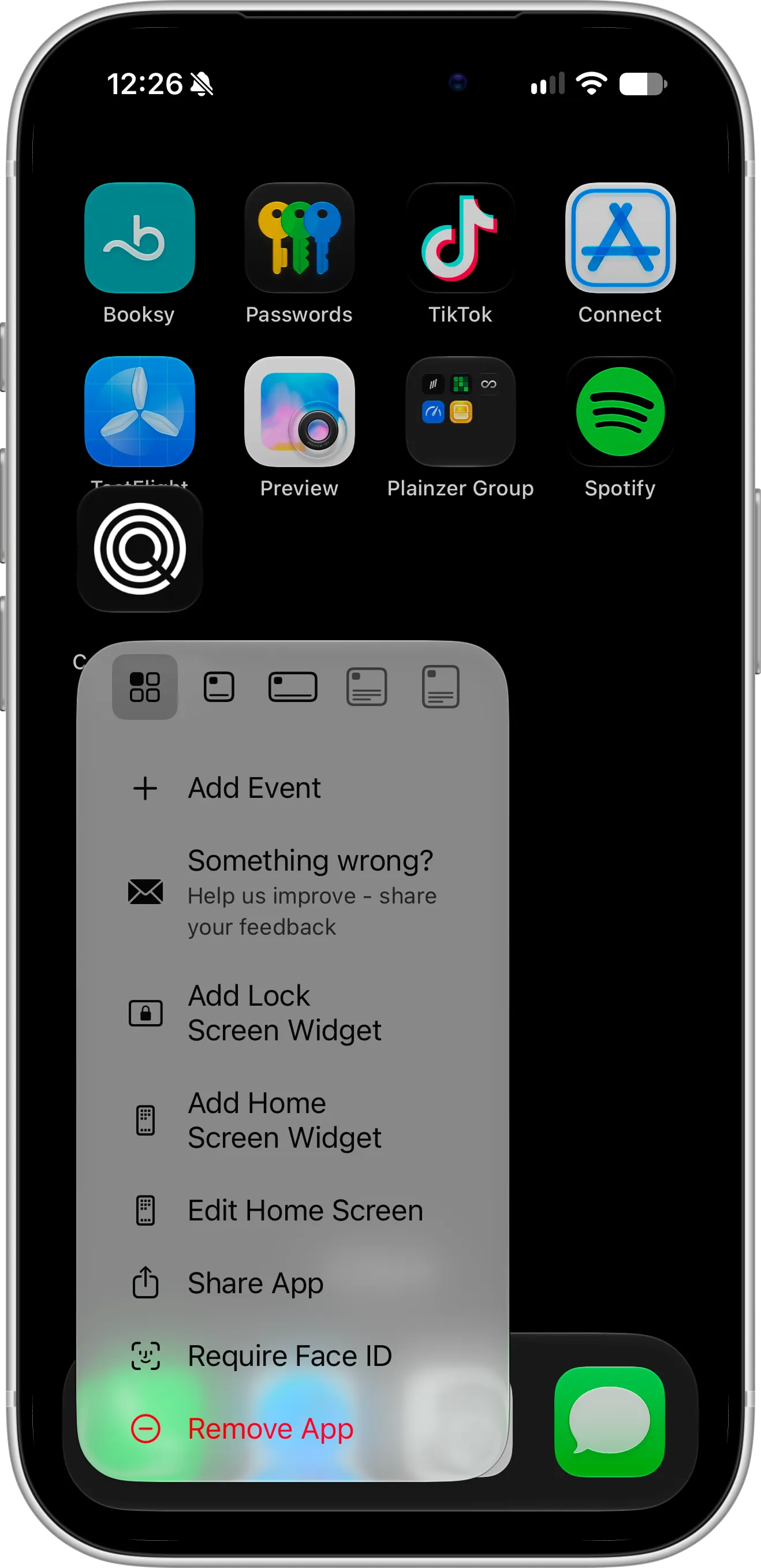
Touch and hold the Countdown X icon to add an event or open a widget guide without going through the app.
Tips for Adding Events Quickly
Choose the option that matches how you use your iPhone. If you often check the Lock Screen before unlocking, the Lock Screen control is the quickest. If you want to add events without looking at the screen, set the Action button to the shortcut and answer by voice or keyboard.
The control and the Add Event quick action open the full New Event screen, so you can set colors, Repeat, a reminder or Live Countdown right away. The shortcut is faster but creates a simple all-day event, which you can edit later in the app.
Need Help or Have Feedback?
If you encounter any issues, have questions about adding events, or want to suggest improvements, you can always reach out through the contact page. Your feedback helps make the countdown app better for everyone.